We Repair All Type Brand Oppo, Vivo, MI, Samsung
Gtech Mobile Repairig Nagra Road bilaunjha Mau, Click This Link And View My All Repairing Videos
All Type Mobile Software Service Available
All types of mobile software is done online or offline. Contact for online service.
Mobile Repairing Hardware Solution
We Provide All Type Mobile Hardware Repairing Solution in Image like Jumper Pic
Gtech Mobile Repairing YT Channel
Here We Post All Type Brand Repairng Videos.Tab This Link And See My all Videos,And Do't Forgate Like, Subcribe
Leptop,Desktop Software solution
All type Windows And driver Available.
How to Flashing Samsung phone using Odin tools
Odin downloader is a flash tool that uses Firmware (Stock, Custom) or any root file in Samsung's android phone, which can be downloaded as .tar or .md5.
With the help of the odin tool in this tutorial, Samsung's phone is going to share the flashing method.
Flash Samsung Firmware Using Odin Tool
Step 1. First download and install the usb driver of Samsung Mobile.
Step 2. Download the Flash file of Samsung Mobile which you want to flash. Type to download MODEL NO. + Stock Rom
Step 3. Samsung mobile power off (if this phone is dead from the software problame then skip this step)
Step 2. Download the Flash file of Samsung Mobile which you want to flash. Type to download MODEL NO. + Stock Rom
Step 3. Samsung mobile power off (if this phone is dead from the software problame then skip this step)
Step 4 Now bring the mobile to the Download Mode, press Volume Down key, Power key and home key simultaneously to bring you to Download Mode. After vibrating the phone, leave the key.
Step 7. Double Click and Open Odin tool.
Step 8. Now connect your phone to the Download Mode Odin tool will identify the device and type its id number.
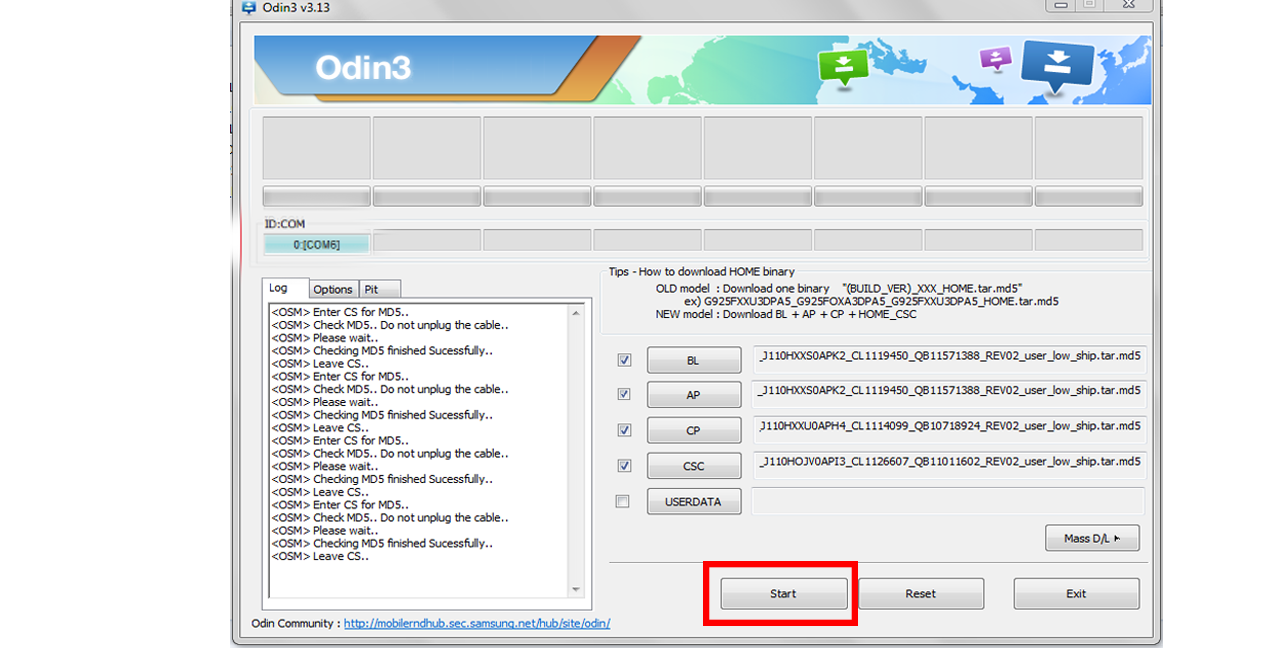
Step 9.After connecting the phone, click the .tar.md5 All button and select AP FILE BL to BL, CP to CP, CSC to CSC
If Firmware is in singal file, it is only selected in the AP (PDA).
Step 10. After uploading the file, click on Start button.

Step 11. Remove the usb cable after the green pass Masage Phone will restart the device automatically.
How to Fix DRK Error in Samsung Mobile
How to Fix DRK Error in Samsung Mobile Easy Way
DRK ( Device Root Key) It comes from the incoming Cache file with the firmware. To solve this, the file with the cache is deleted from the firmware and flash from the odin tool. So let's learn how to do
Step 1. First of all the phone which is having DRK error problem. Download his flash file from google, if you have it, then extract it.
Step 2. After extract you will get a file which will be extinction .tar.md5 and convert it to zip file.
Step 3. Change to zip file by rename it to save .md5 and save it. Once renamed, the file will be compressed in zip.
Step 4. Extract the zip file again, after that you will see that file.
Step 5. This file has to delete the cache file.
Step 6.After deleting the cache file. Select all the files by right-clicking the mouse and changing it to .tar file with the help of 7 zip. Because the odin tool will not support this file.
Step 8 → Open the odin tool and flash this file with AP
Save user Data Of Samsung Mobile With 4 File
In this tutorial, I am going to tell you how to save Samsung mobile user data using 4 files? Friends, when you flash with Samsung's single firmware, its user data is saved. But the user data is saved even by 4 files.
Step 1 Open Miracle box ➨Now select Samsung ➨Write Flash and select 4 file in all folder
Step 2. After selecting File, select the CSC file and click on the Display list to untick the cache.img and hidden.img file.
Step 3 After that, the userdata.img is also removed from the PDA / AP.
How to Remove FRP in All Samsung Mobile by Adb mode
ADB (Android Debug Bridge) is a command line tool that is used to exchange information with smartphones, tablets, smartwatch or any other device when using a box or software tools on the mobile by adb mode onn So the box or software tool sends a command, the user who sends the command, gets the solution in the mobile.
But if there is a mobile FRP, then ADB mode is not easily done. Friends, if you have a Frp on Samsung mobile and want to enable adb, then follow the following Step
How
to Enable ADB Mode in Samsung Mobile
Step 1. First by searching Model + adb File in Google.
This adb file is easily flashed from you Odin tool, because it has an Extinction of Flash File (.tar). Which has to flash with an AP in the odin tool.
If ADB File is done, then the option to enable ADB in mobile will come. Sometimes this file does not work.
Sometimes this file does not work or if someone does not get ADB file of any mobile, then another method is used.
Step 2. The Samsung Combination File is used to enable ADB from another medhod.
Know More How to Read Samsung Combination Binary Name
Friends All the combination of the mobile file is available with the file z3x box in free and this file has extanction (.tar) which you can flash with Odin. After flashing from the Combination File, the phone will come in this condition.
Step 2. The Samsung Combination File is used to enable ADB from another medhod.
Know More How to Read Samsung Combination Binary Name
Friends All the combination of the mobile file is available with the file z3x box in free and this file has extanction (.tar) which you can flash with Odin. After flashing from the Combination File, the phone will come in this condition.
After Flashing from Combination File will be on mobile, then you can enable usb debugging by enabling the developer option in the mobile setting.
Go to setting >> About Phone
>> Tap 7 times on “Build Number” >> Go back >> Enter into
“Developer option” >> Enable USB Debugging & OEM Unlock
Once ADB is enabled, you can remove Frp on the ADB mode with Miracle box, Z3x box or UMT.
Method 1 Miracle By ADB Mode
Method 2 Miracle By ADB Mode
All Samsung Mobile Phone Flashing Tutorial
All Samsung Mobile Phone Flashing Tutorial Step By Step
Friends, Samsung has some kind of CPU in its mobile flashing from its Flash file. For example, if the extinction (. TAR) of the Flash file comes, then flushing it with the odin tool. And when (.pac) comes, use the Research Download tool. If you do not know who is the extinction of the CPU's firmware, and which tool is used for which extinction. So you can see by clicking on the link below. ⟹ Know All Firmware Extinction
Mobile keypad or orroid should do its flashing flash according to the file's extraction.
Sign Software Problems in Android Mobile
- Stuck on logo
- Working Slowly Mobile
- Coming to the Mobile Phone Virus
- Stop the working of an app
- Error getting mobile on Flash with Firmware
- Inaccuracy regarding mobile phone software
Essential
tools for flinging Samsung Android mobile
- Computer
- Original data cable
- Mobile
- Stock Rom
- Flashing Tool-Odin tool
- Flashing Usb Driver Mobile
Step 1. The mobile to flash. Dawnload its Flash File from Google. To do Dawnload, please search for Mode Name + Stock Rom or Flash File
Keep in mind, while downloading Samsung's Flash file, always download Country wise File.
If you are in India (.info) Download File
Samsung gives two-way firmware file.
Single Flash file, in which all the files that are Firmware remain compressed, which does not delete user data when flashing. We select from the SINGLE file AP and flash it.
Stock Rom gives a lot to Samsung Multi File. Which contains 4 files,
- BL boot-loader - file to be processed when the mobile is BOOTING
- AP (PDA) Android Partition - System File of the Internet
- CP is Modem File in which the network file loads
- CSC Consumer Software Customization, - This file contains user data store
- Download Odin tool from Google and open it
- Install USB driver, if it is already installed, then skip this step.
- Use the file in the given option (if there is a single file, then we will call in AP, 4 file BL to BL, AP (PDA) to AP, CP to CP, CSC to CSC)
- Now Click OK After some time you will see the green signal, then mobile flashing will be completed.